
FlyMe quick guide
Guide is a bit outdated. New documentation for FlyMe 3.0 will be available soon.
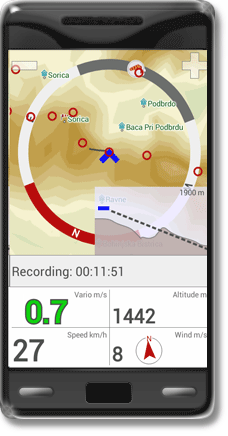
Map
 known thermals
 wind direction
 goal direction
 geo. locations (cities, …)
 paragliding launch sites
 other gliders (live tracking)
 waypoints (editable)
Tap the map to switch between Rotating map and Flight trail map.
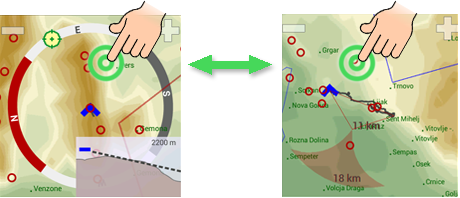
On the Flight trail map you can see the whole flight trail, FAI assistant and task path. Terrain side view is shown on the Rotating map only. All other features are visible on both maps.
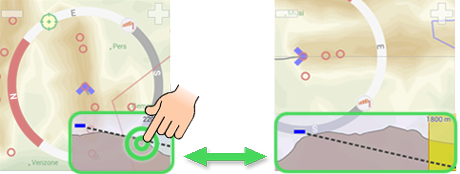
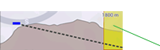
Terrain side view
Tap the Terrain side view box to change map orientation and extend or shrink the terrain view.
 Forbidden airspace
Message box
Tap the message box to switch between status, distance/task and goal. The view automatically changes every five seconds.
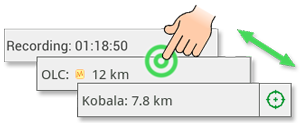
If a competition task is active, the message box shows the most relevant information about the task and next turnpoint.
Waypoints, goal, tasks
Tap the goal icon to select a destination point or task.
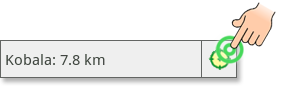

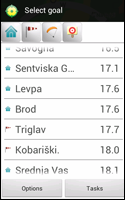

Show or hide geo locations, launch sites, other gliders and waypoints. Waypoints can be added, edited or deleted with a long press. Editable waypoints are stored in xcglobe/poi/waypoints.cup.
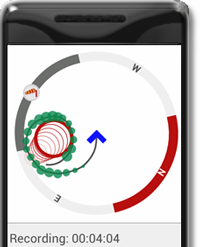
Thermal assistant
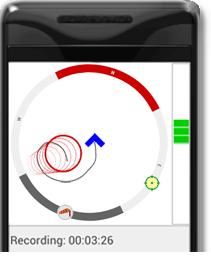
Thermal assistant shows up automatically when you start circling in a thermal.
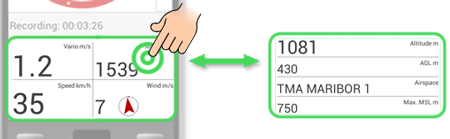
Numeric display
Tap the numeric display to switch between views.
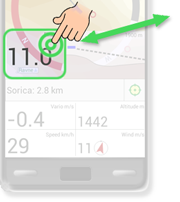
Extra data box
The extra data box is hidden by default. Tap it to switch between finesse, heading, nearest thermal and ground speed.


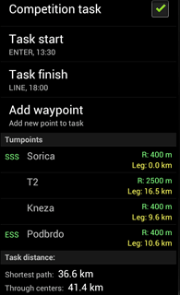
Competition tasks
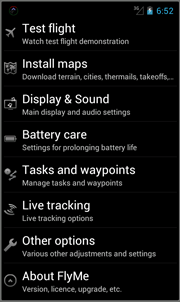
You can manage tasks in Options → Tasks & waypoints. FlyMe calculates an optimized path that minimizes the overall distance and shows cylinders, the goal line and direction to the next turnpoint.
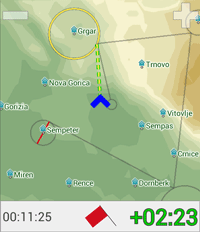
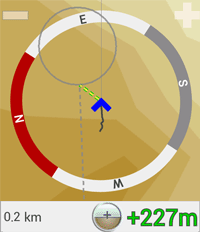
| Message | Meaning |
|---|---|
  | Before start cylinder crossed: time until start opens and estimated early or late arrival at the optimized start point. |
 | Approaching next turnpoint: distance and calculated arrival height above the turnpoint. |
 | Turnpoint not yet within reach: distance and ground elevation of the turnpoint. |
External Bluetooth devices
Enable Options → Other options → External device. FlyMe will use an available device in range and automatically switch back to internal sensors when the connection is lost.
Main menu
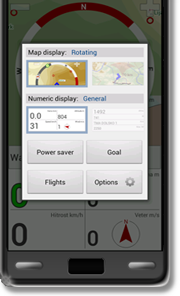
The menu switches map and numeric views, activates power saver mode, selects a goal, shows or stops flights and opens options.
Flight recording
Start recording uses automatic flight start detection. Recording can be stopped automatically or manually from the main menu.